

What you’ll learn in this guide
How to:- Fetch filtered campaigns automatically with the lemlist API on a daily basis
- Fetch the statistics of those campaigns
- Put them in a Google Sheet for visualisation and sharing
Imagine…
You’re an outbound agency sending tens of campaigns on behalf of your clients. You want a way to:- share campaign performances with them automatically
- and without them knowing about the performances of campaigns that are not theirs
Sync relevant campaign stats with GSheet on a daily basis
Overview
“What’s a relevant campaign?”I’d say it depends on your situation, but it could be a campaign:
- that’s running or ended
- that has a specific word in its title (like the name of the client you want to build the report for)
- that’s been created less than a year ago
- you name it
“I’ve read ‘automation’ and ‘automatically’ a lot since the beginning of this guide, but how? With what tool?Again, like in all other guides: n8n — my favourite! But you could definitely use another one like Make or Zapier.
Fetching relevant campaigns on a daily basis
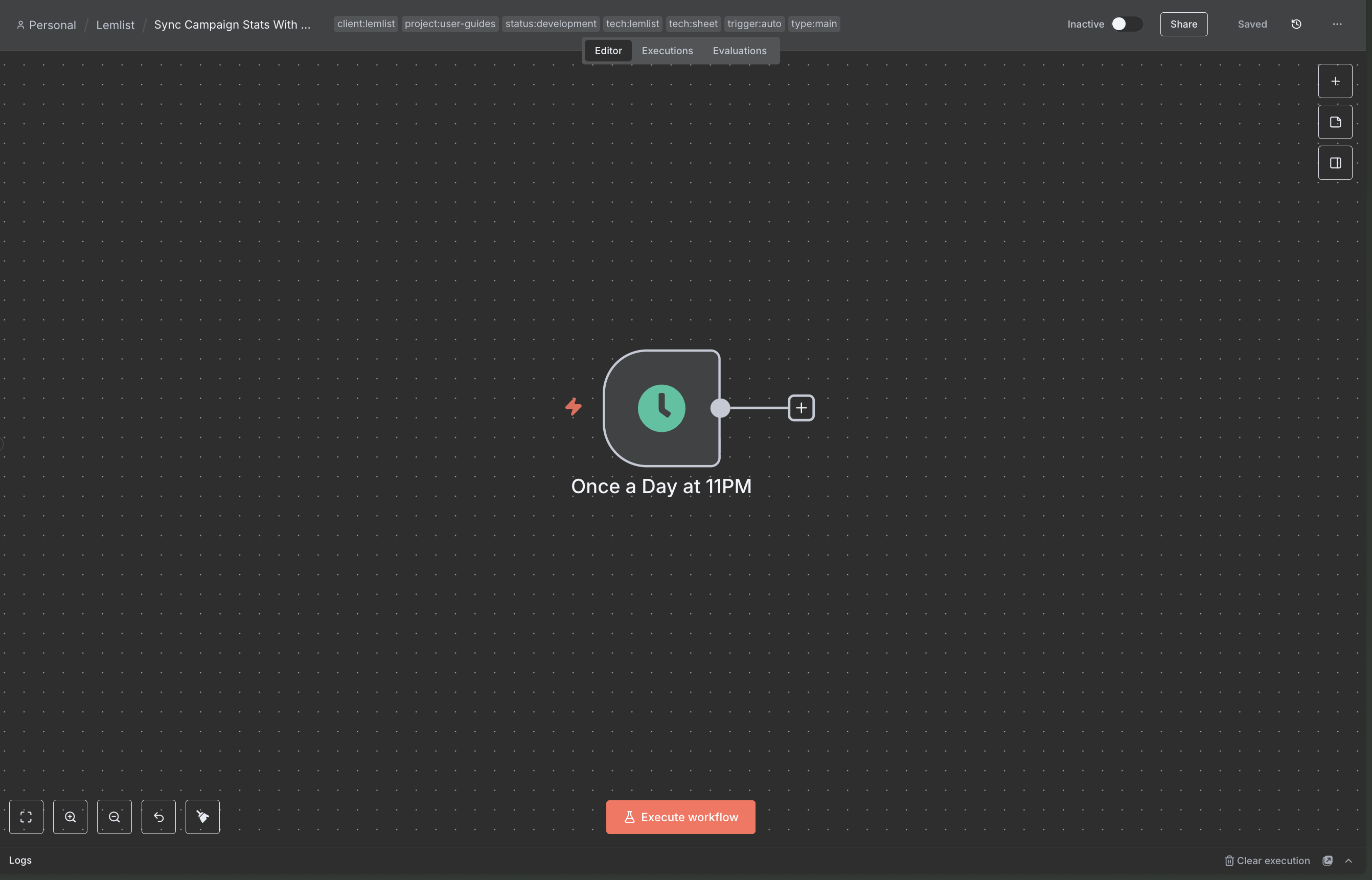
Here’s how:- Head over to n8n, create a new workflow, and drop a “Schedule” trigger configured to run once a day, at the end of the day (once all emails of the day have been sent):
- Then add the lemlist node “Get many campaigns” to fetch literally all campaigns in your workspace (we’ll filter them afterwards), like so:
Click on 'execute the node' and pin the results.
- Chain a “Filter” node to your workflow and apply all the filters that make sense for your use case. Here are mine for instance:
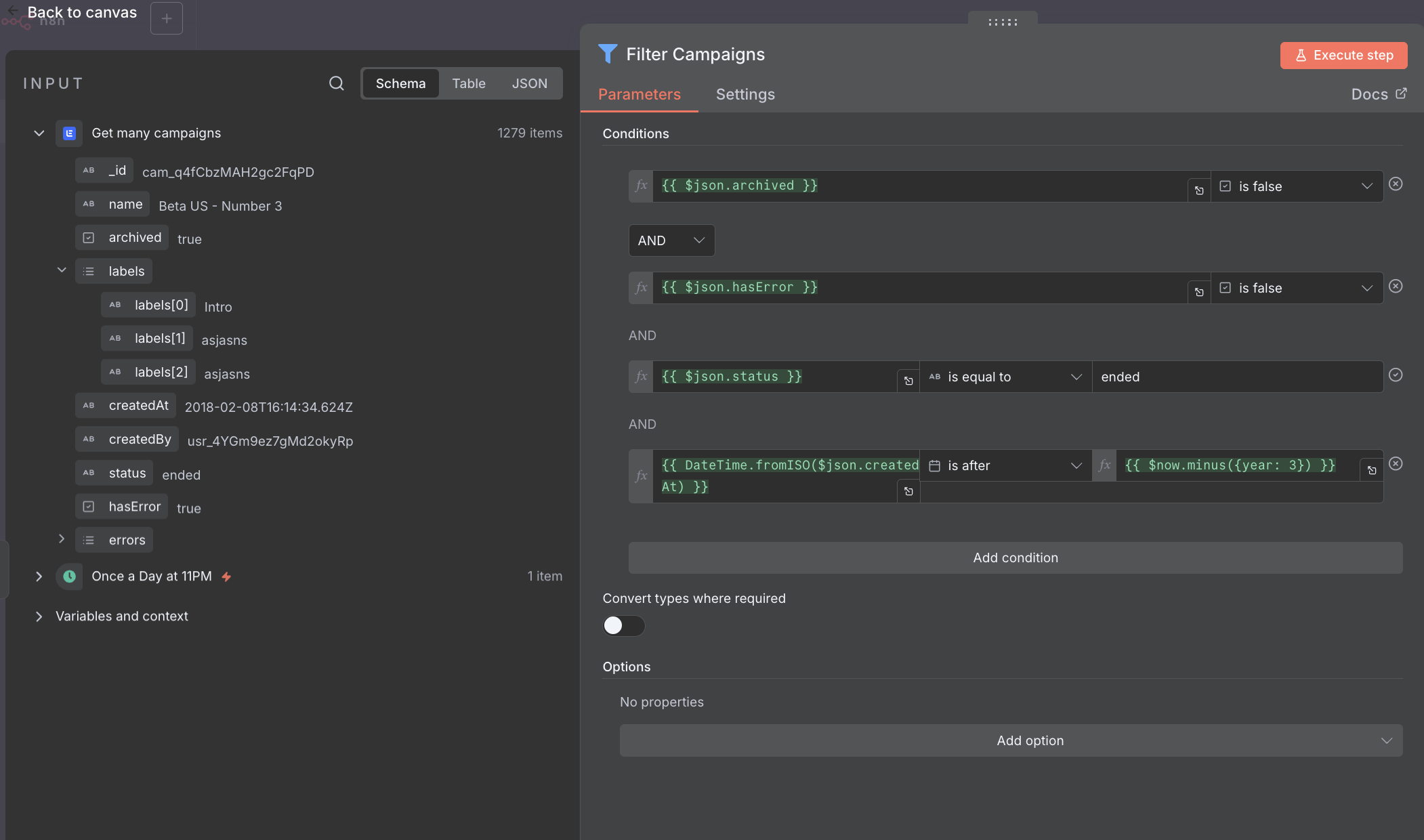
I want un-archived campaigns, without errors, that have finished and that have been created in the past three years. That's how.
Fetching relevant campaign statistics
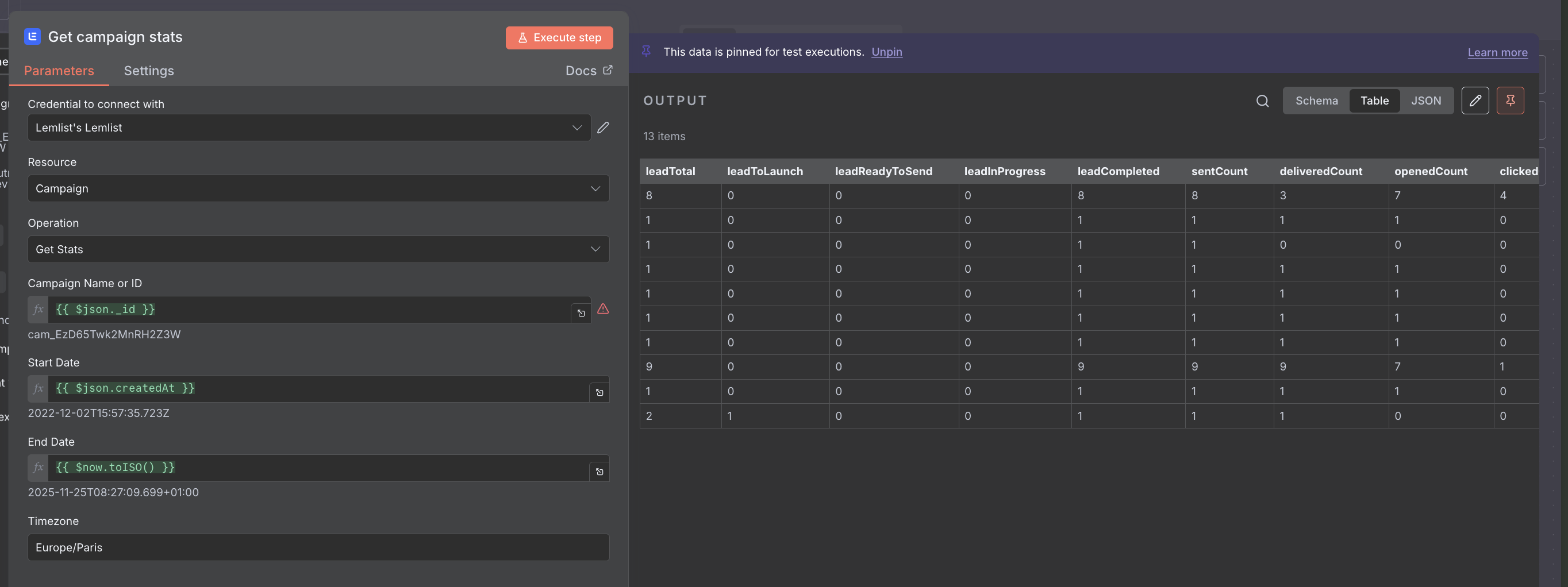
At the previous step, we fetched relevant campaigns, now it’s time to get their stats:- Chain the lemlist node “Get campaign stats” and configure it to retrieve the stats of the input campaigns from their creation dates to today:
get campaign stats node configuration
- Once configured, execute the node and pin the results. Ultimately, the node should look like this:
However, with just the results of the node, we lost the info about the corresponding campaign. Which is why we are not done just yet…
- Chain a “Merge” node to the workflow like so:
Configure it to merge items based on position.
Don’t forget to pin everything and move on.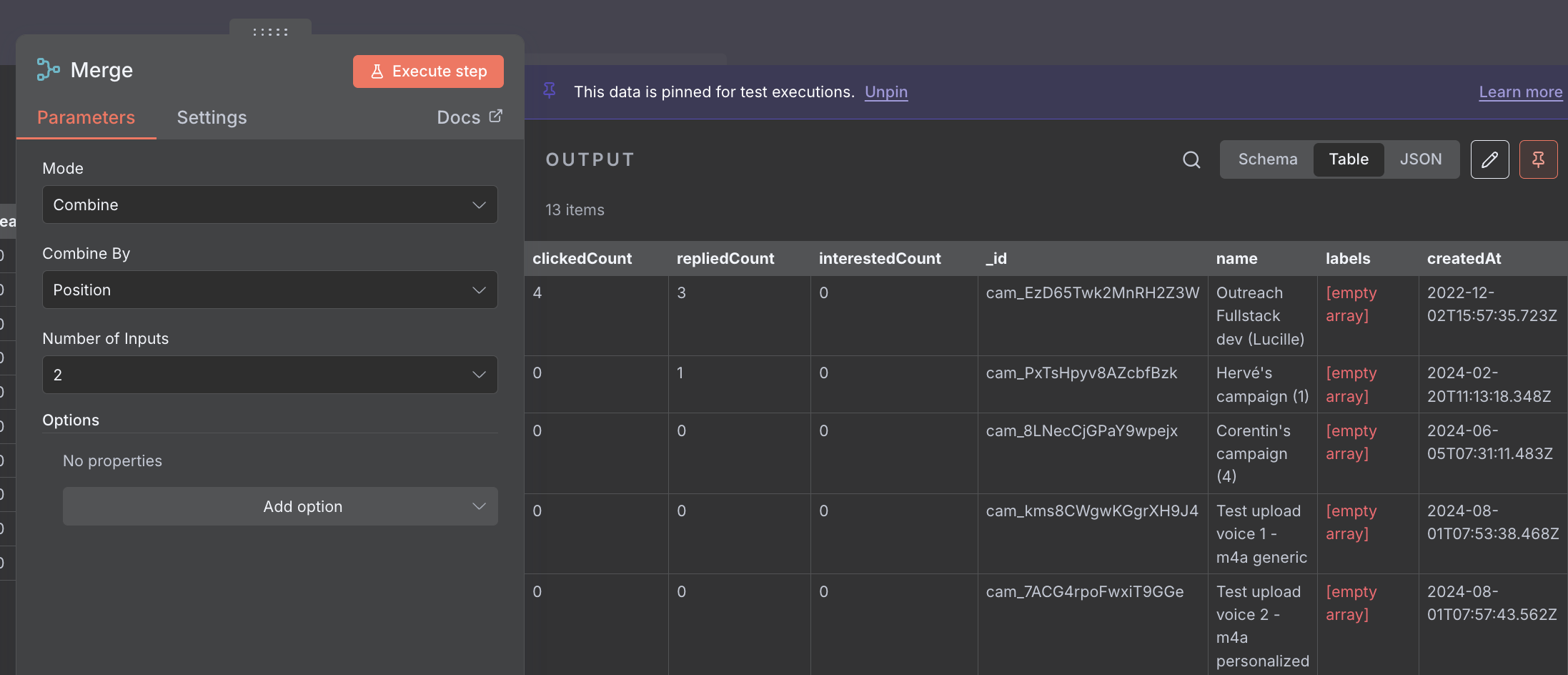
And you'll see in the output that the stats have been merged with the input campaign details.
Drop results in the Google Sheet
-
First, create a blank Google Sheet somewhere in Google Drive and make sure n8n has access to it (here’s the doc to give n8n access to google sheets if not) and add headers to the sheet. You need to add them manually beforehand, like this:
cmd+shit+v to paste without formatting, then copy and then special paste the transposed array.
-
Then, add a “Append or update Sheet” Google Sheet node to the workflow.
“Wait, why update?” Because, i’m assuming that you only want the most up-to-date stats in your Google Sheet. If not though, you would simply append results to your Google Sheet and timestamp them. It’s up to you, but from there, i’ll assume that you only want the most recent data and hence, need to update rows in your spreadsheet (that’s why i had you enter sheet headers manually beforehand by the way).
Ultimately, this is what your node configuration looks like (when you map columns automatically, which i suggest you do, thanks to the preparation of your spreadsheet at the previous step):upsert row in Google Sheet
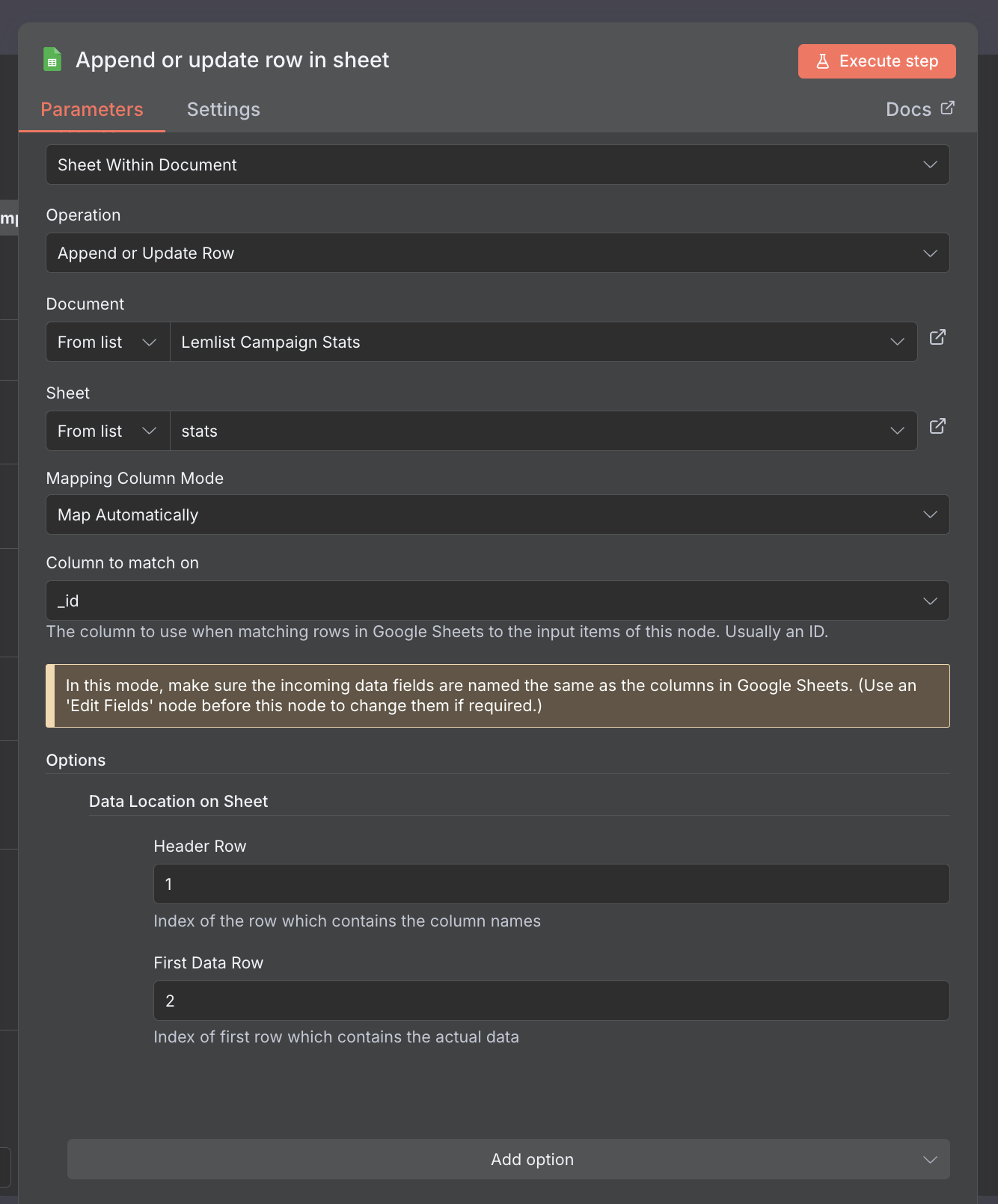
The matching column is obviously 'id_' i.e. your campaign id.
-
Now click on “execute workflow” one last time and make sure that your spreadsheet gets updated as intended.
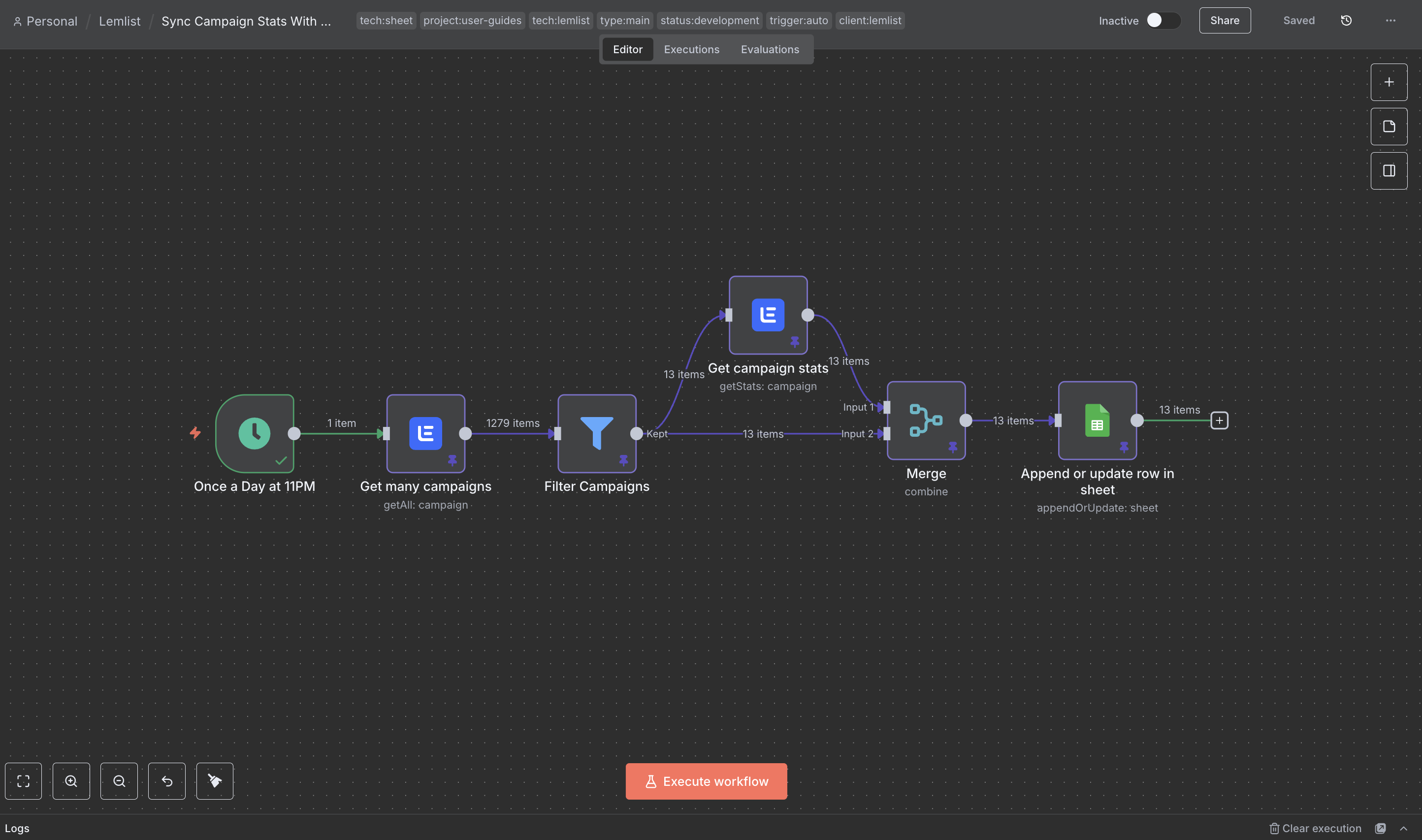
It should look like this ultimately.
- Wait, you know what? Run it even a second time, and make sure that your spreadsheet actually got updated, and that you didn’t append rows at the end of the sheet ;) If not, congrats: activate your workflow and you’re good to go!