What you’ll learn in this guide
How to:- build a mini AI agent to classify lead replies either as positive or negative
- detect such replies and classify them automatically with your agent
- mark leads as interested or not in lemlist automatically to refresh your campaign stats
- manufacture highly customized and SDR-friendly notifications in Slack
- warn your SDRs in Slack within 2 minutes of positive replies with such notifications
Imagine…
Outbound is front and center in your acquisition; you have tens of hyper-segmented campaigns running all year round on lemlist; and you’ve been going at it for years. So much so, that you get a few tens of replies to your emails every day. Unfortunately, by waiting for SDRs to log into lemlist and check for replies, leads have already had time to cool down 10 times.Your conversion rates are not as high as they should be.The faster SDRs reply to interested leads, the higher their chances of converting them. Which is why they need to know about positive replies as soon as possible. If only there was a way to:
- automatically categorize lead replies
- and warn SDRs no later than 2 minutes after someone interested replied…
Warn SDRs in Slack when a lead seems interested
Overview: connect lemlist to Slack with OpenAI and n8n
Why Slack?Well, that’s the one place where you can find SDRs throughout the day. So if there’s a place to warn them about interested leads, this is the one.
Why OpenAI?Deducing from an email (natural language) whether someone is interested about something is EXACTLY what LLMs (large language models) are good at. Also, OpenAI has a lot of APIs to enable automation use cases like ours. (but to be fair, there are plenty LLM options to choose from — not only OpenAI)
Why n8n?We need to:
- automatically read a lead’s response to our campaign, with minimal latency
- automatically send the text of that email to OpenAI and have it reply with
trueorfalsedepending on whether the lead is interested or not - from the answer, we must automatically:
- mark the lead as interested or mark leads as not interested in lemlist (to automatically refresh campaign analytics)
- automatically send a slack notification when a lead is interested
Detect lead replies in lemlist instantaneously with n8n
- Head over to n8n and create a new workflow
- Search through the list of lemlist triggers for “On emails replied”, add it to your wf and make sure that the
isFirstparameter is set totrue(otherwise, the workflow will get triggered multiple times if you send emails back and forth with a lead).Now your workflow will start each time a lead replies by email to your campaigns, with the content of their reply as input. Exactly what we wanted!adding on emails replied trigger in n8n
- Activate your workflow and activate the option to save production executions
activating workflow and saving production executions
- We still need some input data to develop the rest of our workflow, which is why i had you activate the workflow and save production executions at step 3. Now, you can either:
- wait for a lead to actually reply to one of your campaigns (could be long)
- create a test campaign, send an email to yourself and reply to it like a lead would
- or just use the sample data below and use it as mock data in your node
sample data
Send the email content to OpenAI for sentiment analysis
This is where things get interesting: let’s create a tiny AI agent (based on an OpenAI) to classify leads’ replies!-
Start by chaining the AI agent node with your lemlist trigger, selecting the “Define Below” option for your prompt, toggling the “Require Specific Output Format” option, and, finally, adding a “System Message” option to the node:
creating AI agent node in n8n
-
Fine-tune the AI agent basic configuration, to be similar to this:
Prompt:
 System Message:
 -
From there, you have two things left to tell the agent:
-
what LLM to use (e.g. the least expensive ones from OpenAI because the task at hand is fairly easy)
selecting OpenAI model
-
that we’re expecting a response in json format with a single “interested” key and a boolean value (
trueif the lead is interested, andfalseotherwise) by:- using the “Structured Output Parser”
- selecting the “Define using JSON schema” option
- and actually defining the response schema
defining output schema
-
what LLM to use (e.g. the least expensive ones from OpenAI because the task at hand is fairly easy)
-
Now:
- add a manual trigger node
- use the pinned data from the previous section as mock data in that node
- connect it to your agent
- execute the whole thing
- make sure that you get the desired JSON output with a boolean that makes sense with the email reply (
trueif the email indicated interest, orfalseotherwise)Good? Pin the agent output and move on.testing AI agent
Mark the lead as interest or not in lemlist
“Wait, why even bother? We only want to send a notification in Slack right?”Well, yes, but:
- first, marking leads as (not) interested in lemlist is essential to analyse your campaign performances within lemlist
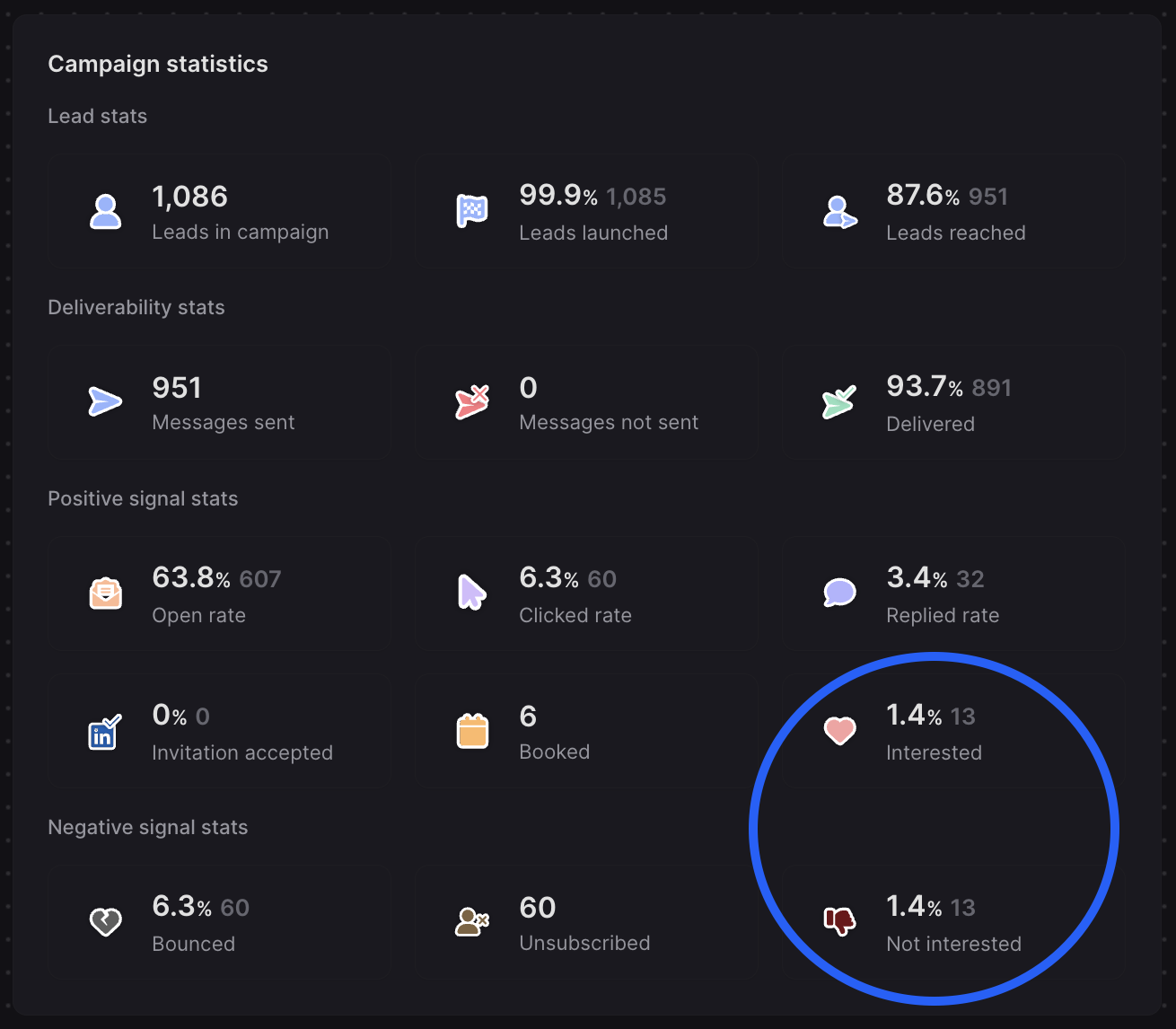
Someone (or something) needs to mark leads as interested or not to get these kinds of metrics and methodically improve your campaign
- and, second, since we have already done the heavy lifting (classifying the replies as interested or not), we might as well mark them accordingly in lemlist — it’s an API call away: this endpoint to mark lead as interested or this one to mark them as not interested.
- make your workflow branch out depending on the agent’s response:
- one branch for interested leads
- another for non interested leads
branching workflow based on AI response
- In the first branch, you’ll add a new http node to make a custom api call to the first endpoint
Use the API reference playground to copy the curl of the request and paste it in the n8n node
- Same thing in the second branch, with the endpoint to mark leads as not interested.
- Finally, execute the workflow, check the results, pin the new output and move on.
executing workflow to mark lead in lemlist
Build a SDR-friendly notification and send it in a Slack channel
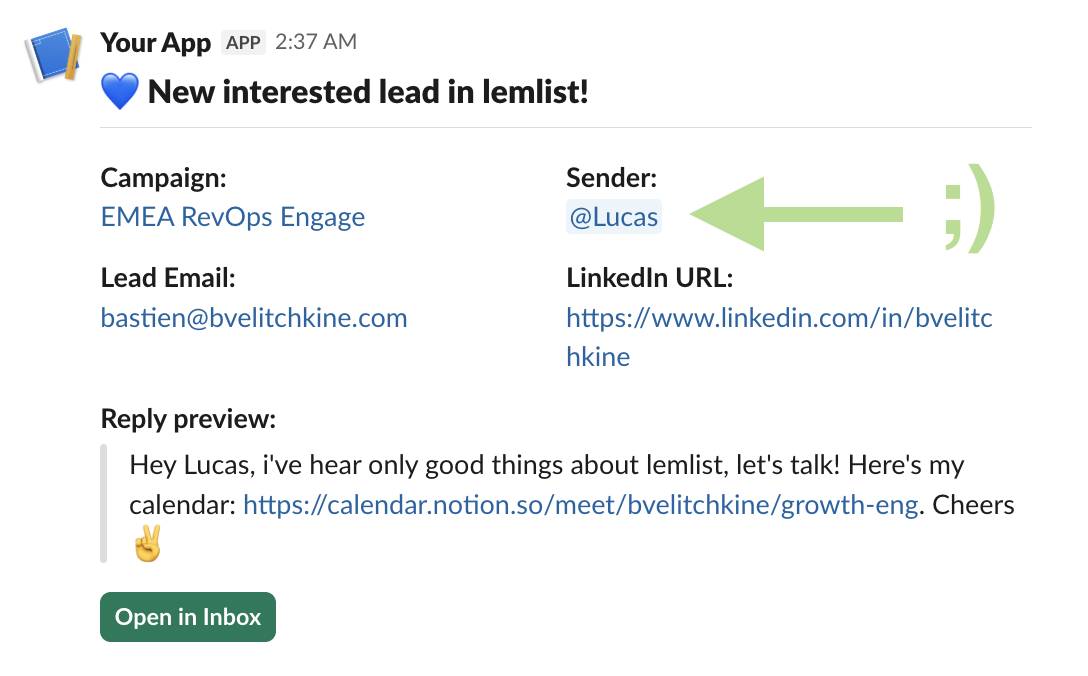
Here we are, last step of this tutorial! We’ll do two things:- manufacture a beautiful notification using Slack’s Block Kit Builder
- send it in the dedicated channel in your slack workspace
Craft a SDR-friendly notification
-
Use the Slack block kit builder to iterate on the notification and reach the desired result
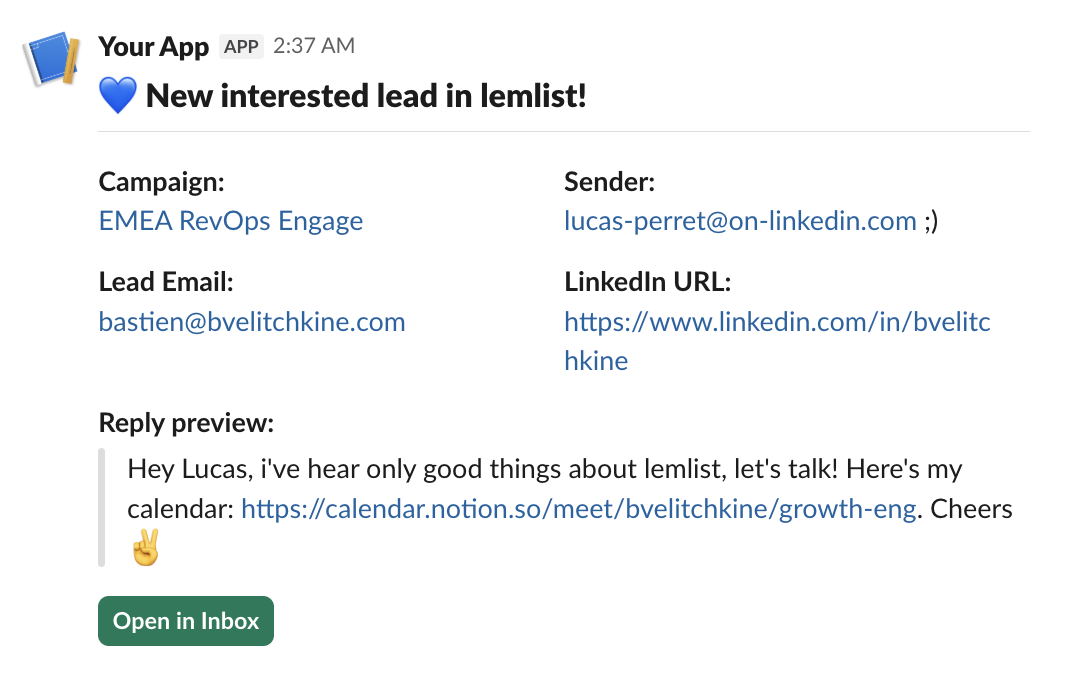
Here's a SDR-friendly notification suggestion
And here’s where you must go first, should you want to modify that notification ;)And here's the JSON for that friendly suggestion
-
Once you’re happy, add a “Edit Fields (Set)” node in your n8n workflow to extract all the variables required by above notification, namely:
- lemlist_team_id
- lemlist_campaign_id
- lemlist_campaign_name
- lemlist_lead_id
- lemlist_contact_id_of_the_lead
- lead_email
- lead_linkedin_url
- sender_email
- reply_preview
- lemlist_sequence_id
Obviously do the same for all other variables (and change 'item' to 'first()' when needed).
- Again, execute the node and pin the data.
Send that notification in Slack
-
Finally drop a “send message” Slack node in the n8n workflow, and configure it to send a message to yourself, as blocks:
configuring Slack node
-
Then, add the JSON blocks manufactured in the previous section in the dedicated area of the node, wrapped in a
JSON.stringify()expression.wrapping blocks in JSON.stringify
-
And then inject variables where needed (you will need to use javascript template literals):
Here’s the final n8n expression
Pay attention to
JSON.stringify()and all the template litterals! - Now, send the notification first to yourself, and once satisfied, change the node parameters so that future notifications are sent to the dedicated channel
- Don’t forget to activate the workflow!
BONUS 👀
BONUS 👀