

What you’ll learn in this guide
How to send email sequences automatically, to leads who submitted your form, without having to review them manually. More specifically, you’ll learn:- how to create a lemlist campaign in “auto launch” mode
- how to automatically:
- enrich the leads who submitted your form to find their phone numbers
- and then add them to the campaign
Imagine…
You organised an event and you plan to submit a form to participants during that very event. Upon submission, you’d like to send them a series of emails, and the first email to be sent a couple of hours after the event — no later. But here’s the thing, there are too many leads to manually send emails, keep track of who replied, follow-up, etc. This is why you want to use a lemlist campaign. But still, even with an automated campaign:- there will be too many form submissions for you to add leads manually to that campaign
- and too many leads for you to review them all manually, especially since:
- you want the first emails sent immediately after the event
- and you already trust form respondents to submit the right info (the form isn’t mandatory and people were present at your event)
If only there was a way to add leads who submitted the form to a lemlist campaign automatically, without having to review them…
well… there is :)
Automatically add leads to a campaign in auto launch mode
If you leverage the lemlist API, this is all fairly easy, you’ll have to:- create a lemlist campaign with “auto launch” mode on
- create the form you were thinking about
- create a workflow to bridge the gap between the form and the campaign (that’s where the API comes into play!)
Create a lemlist campaign in auto launch mode
-
Head over to lemlist, create a new campaign and activate the “auto launch” mode
That’s how you’ll skip reviewing every single lead catapulted in your campaign
-
Now, copy the lemlist campaign id and store it somewhere, because you’ll need it later
It looks like this: cam_eMZnxqs9Z9nqGxzwT
Create a form on a builder like Tally
There are two requirements for the form itself and its builder:- the form must ask participants for their emails (obviously)
- the builder must include features to send form submissions to external tools
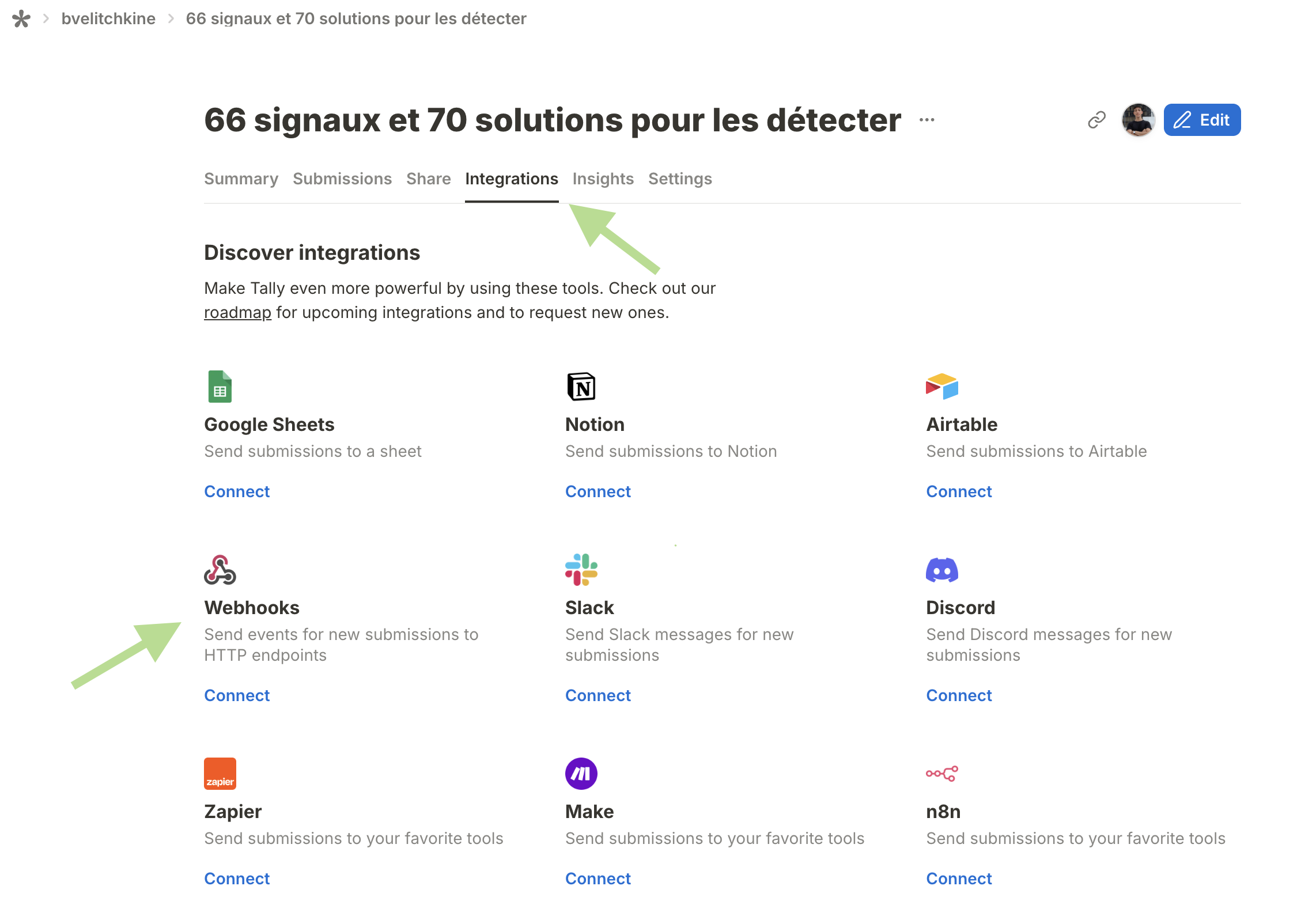
…integrations/automation features!
A webhook is some kind of “antenna” in a tool like Zapier, that listens for “signals” coming from aliens other tools like Tally. When it receives a signal (i.e. data), it can then trigger automations (i.e. workflows) in that tool.
Make sure it has a mandatory email input.
Connect the form builder to lemlist with n8n
Now, it’s the time to connect the form to your lemlist campaign. Like i said, the form will send form data to a webhook of your choice upon submission. Then, you’ll use that data to create a new lead in your lemlist campaign. At this point, the only thing we’re missing is a solution to bridge the gap between Tally and lemlist. An automation is perfectly warranted in our case. And when it comes to automation tools, i LOVE n8n:- extremely powerful
- well-maintained
- cost-efficient (especially when self-hosted)
- and — most-importantly — including webhooks to trigger its workflows.
Configure the webhook in n8n
- Head over to n8n
- Create a new workflow
- Pick a webhook trigger and: a. set its slug to something readable b. set the method to POST
Again, pay special attention to the HTTP method (POST)
Have Tally send the form data to the n8n webhook
- Copy the webhook TEST url in n8n
- Head over to tally and publish your form (you can always edit it later)
- Put the TEST url in the integrations section of the form
setting a webhook url in Tally
- Switch to n8n and click on “execute workflow”
- Switch back to your form and submit it with your own email address (not someone else’s; not a fake one — we’ll use it later)
- Make sure that n8n got the form data and pin it!
triggering n8n webhook with Tally submission
Have n8n create the lead in the lemlist campaign
- Head back to your n8n workflow and search for the “Create a lead” lemlist node
- Select the lemlist credentials that correspond to the lemlist account with your campaign
- Paste the lemlist campaign id copied at the beginning of this guide
- Fill the email input with the data coming from Tally, like so:
adding a create lead in lemlist campaign n8n node
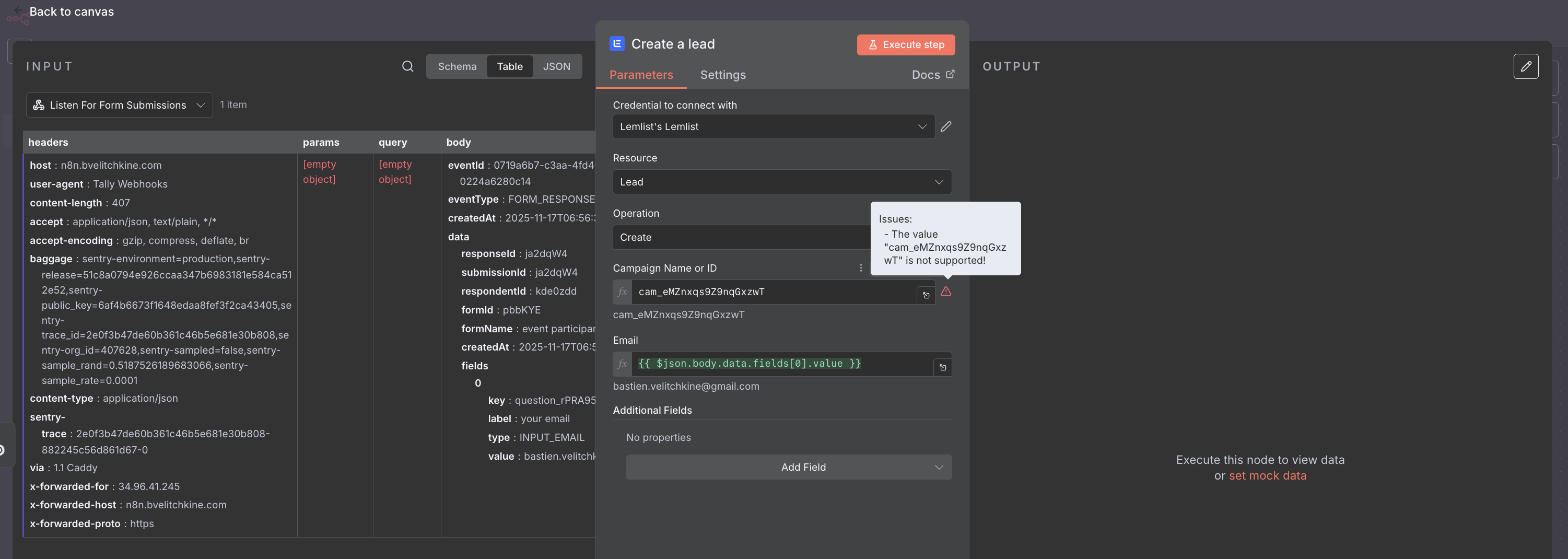
Even with a valid lemlist campaign id, you might see this error. Ignore it!
- Last, but not least, activate the Find Phone option on your Create lead node
This way, lemlist will automatically try to find a phone number for your leads upon addition in a campaign.
Give it a try ;)
- Copy the PRODUCTION url of your webhook
- Head back to Tally and delete any previous submissions (for the sake of cleanliness)
- Change the url of the webhook to the production url
switching Tally webhook URL to production
- Now, publish the n8n workflow
- Submit the form again with, say, your personal email address
- And head over to the lemlist campaign and ensure that a new lead has been created
Beware, you won't get the email instantaneously if you submitted the form outside your schedule's slots.