> ## Documentation Index
> Fetch the complete documentation index at: https://developer.lemlist.com/llms.txt
> Use this file to discover all available pages before exploring further.
# Syncing your lemlist campaign stats with a Google Sheet
> Learn how to automatically fetch filtered campaigns and sync their statistics to Google Sheets for visualization and client reporting
export const SnippetVideoFrame = ({src, autoplay = true, loop = true, caption, alt = null}) => {
return
;
};
## What you'll learn in this guide
How to:
* Fetch filtered campaigns automatically with the lemlist API on a daily basis
* Fetch the statistics of those campaigns
* Put them in a Google Sheet for visualisation and sharing
## Imagine…
You’re an outbound agency sending tens of campaigns on behalf of your clients.
You want a way to:
1. share campaign performances with them automatically
2. and without them knowing about the performances of campaigns that are not theirs
If you had a workflow that could export all campaign statistics, maybe filter out a few of them, and drop them in a dedicated Google Sheet, you’d only need sharing the GSheet with your client.
Ultimately, you could build your own charts in Google Sheet: select only the metrics you care about, customize the colors to fit their brand, etc.
## Sync relevant campaign stats with GSheet on a daily basis
### Overview
> “What’s a relevant campaign?”
I’d say it depends on your situation, but it could be a campaign:
* that’s running or ended
* that has a specific word in its title (like the name of the client you want to build the report for)
* that’s been created less than a year ago
* you name it
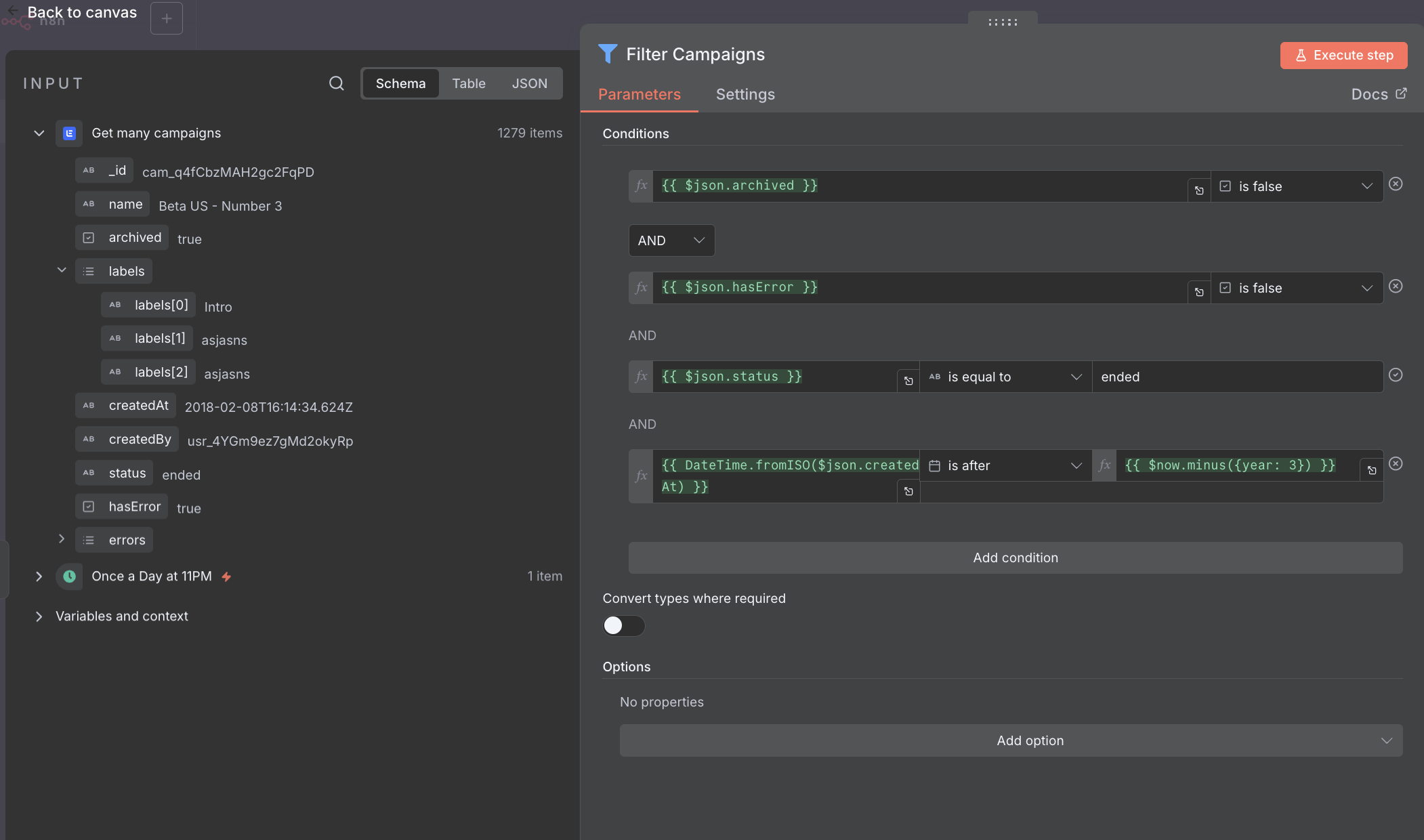
In our case, we will get only the 100 most recent ended campaigns that don’t have errors.
> “I’ve read ‘automation’ and ‘automatically’ a lot since the beginning of this guide, but how? With what tool?
Again, like in all other guides: [n8n](https://n8n.io/) — my favourite! But you could definitely use another one like Make or Zapier.
### Fetching relevant campaigns on a daily basis
If using n8n to automate lemlist for the first time, follow [this guide](https://developer.lemlist.com/api-reference/getting-started/authentication#grab-your-api-key) to grab an api key and save it in new n8n credentials.
Here’s how:
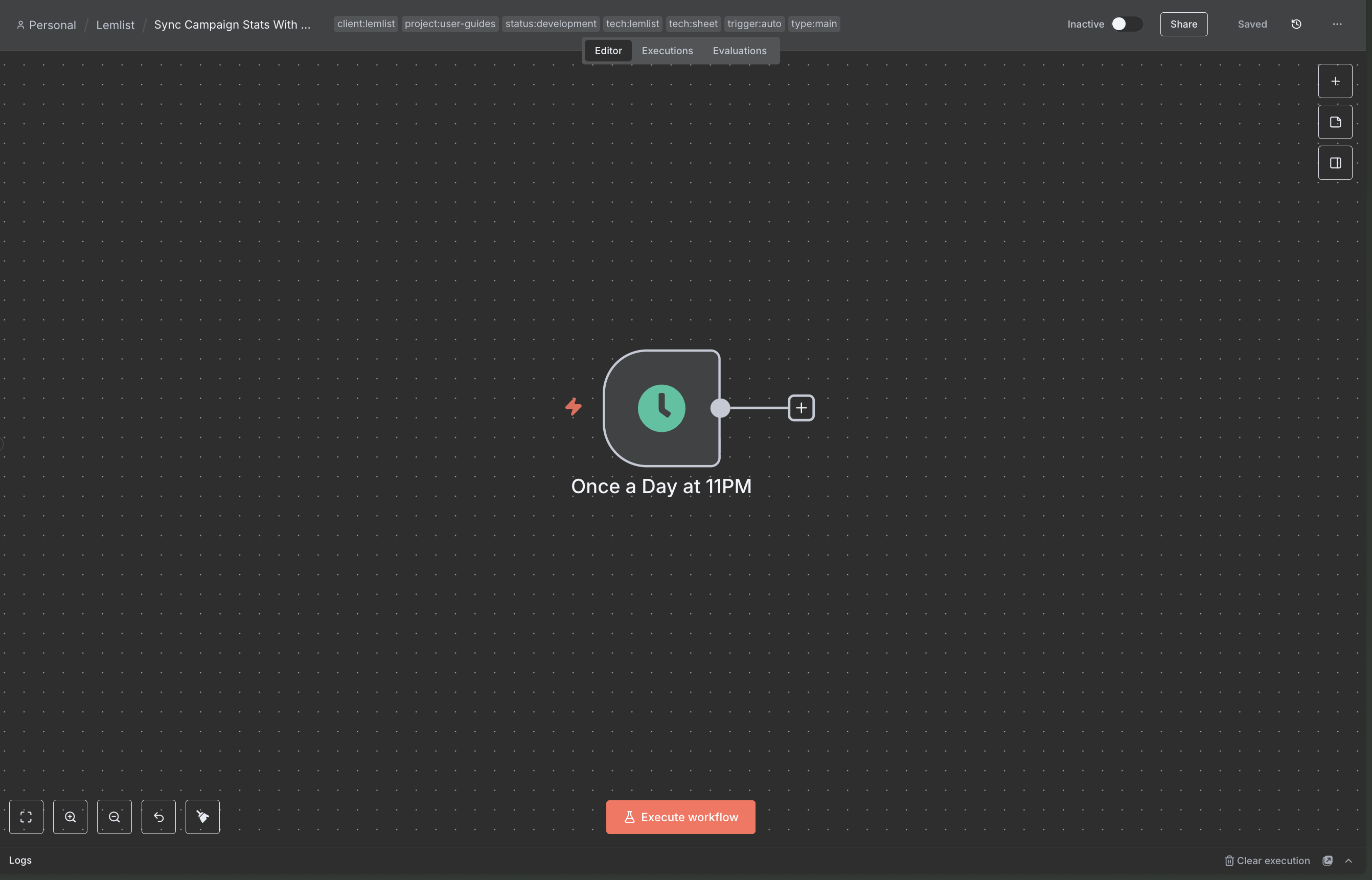
1. Head over to n8n, create a new workflow, and drop a "Schedule" trigger configured to run once a day, at the end of the day (once all emails of the day have been sent):
 2. Then add the lemlist node "Get many campaigns" to fetch literally **all** campaigns in your workspace (we'll filter them afterwards), like so:
3. Chain a "Filter" node to your workflow and apply all the filters that make sense for your use case. Here are mine for instance:
2. Then add the lemlist node "Get many campaigns" to fetch literally **all** campaigns in your workspace (we'll filter them afterwards), like so:
3. Chain a "Filter" node to your workflow and apply all the filters that make sense for your use case. Here are mine for instance:
 ### Fetching relevant campaign statistics
At the previous step, we fetched relevant campaigns, now it’s time to get their stats:
1. Chain the lemlist node "Get campaign stats" and configure it to retrieve the stats of the input campaigns from their creation dates to today:
2. Once configured, execute the node and pin the results. Ultimately, the node should look like this:
### Fetching relevant campaign statistics
At the previous step, we fetched relevant campaigns, now it’s time to get their stats:
1. Chain the lemlist node "Get campaign stats" and configure it to retrieve the stats of the input campaigns from their creation dates to today:
2. Once configured, execute the node and pin the results. Ultimately, the node should look like this:
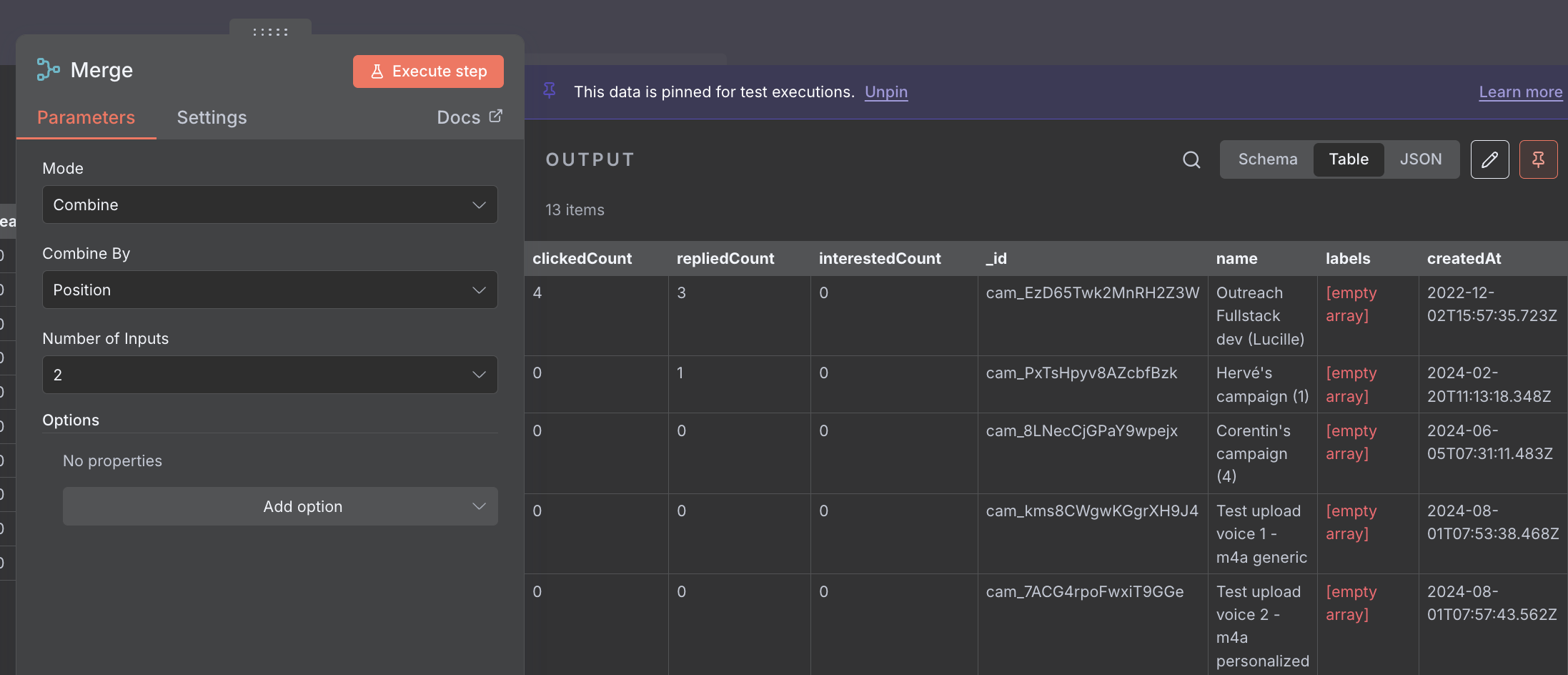
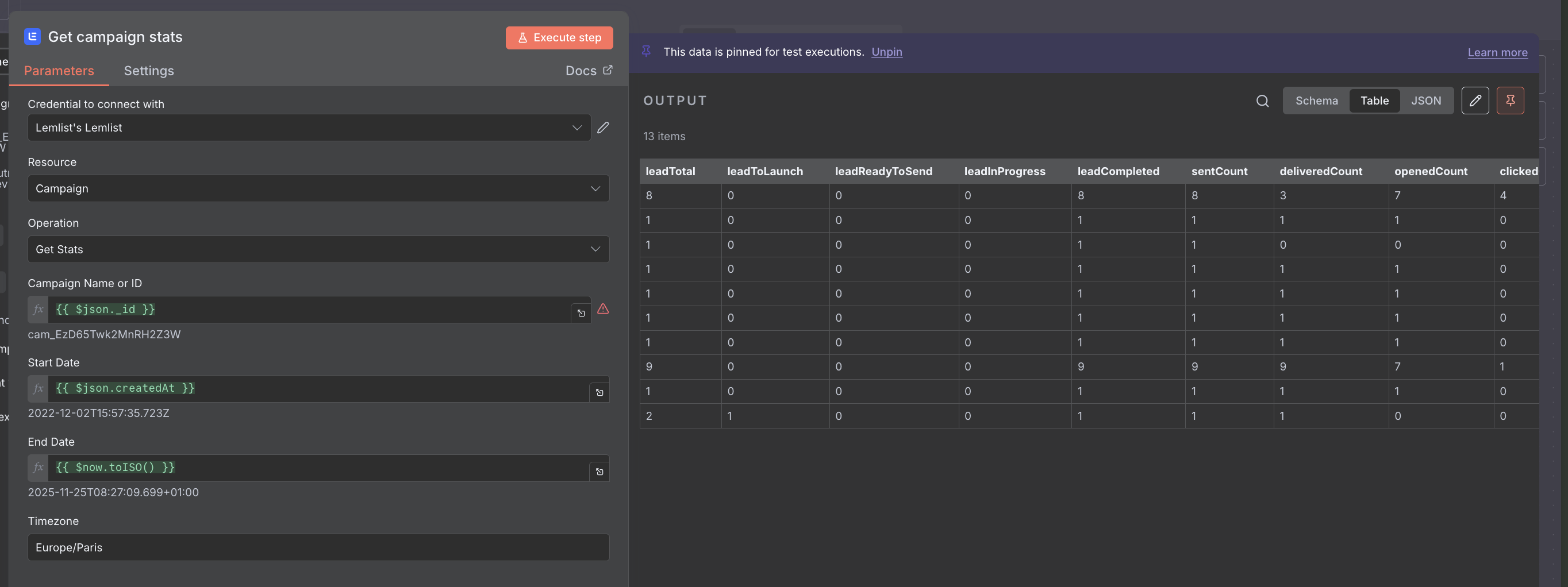 However, with just the results of the node, we lost the info about the corresponding campaign. Which is why we are not done just yet…
3. Chain a "Merge" node to the workflow like so:
However, with just the results of the node, we lost the info about the corresponding campaign. Which is why we are not done just yet…
3. Chain a "Merge" node to the workflow like so:
 Don't forget to pin everything and move on.
### Drop results in the Google Sheet
1. First, create a blank Google Sheet somewhere in Google Drive and make sure n8n has access to it ([here's the doc to give n8n access to google sheets](https://docs.n8n.io/integrations/builtin/app-nodes/n8n-nodes-base.googlesheets/?utm_source=n8n_app\&utm_medium=node_settings_modal-credential_link\&utm_campaign=n8n-nodes-base.googleSheets) if not) and add headers to the sheet. You need to add them manually beforehand, like this:
2. Then, add a "Append or update Sheet" Google Sheet node to the workflow.
> “Wait, why *update*?”
> Because, i'm assuming that you only want the most up-to-date stats in your Google Sheet. If not though, you would simply append results to your Google Sheet and timestamp them.
> It's up to you, but from there, i'll assume that you only want the most recent data and hence, need to update rows in your spreadsheet (that's why i had you enter sheet headers manually beforehand by the way).
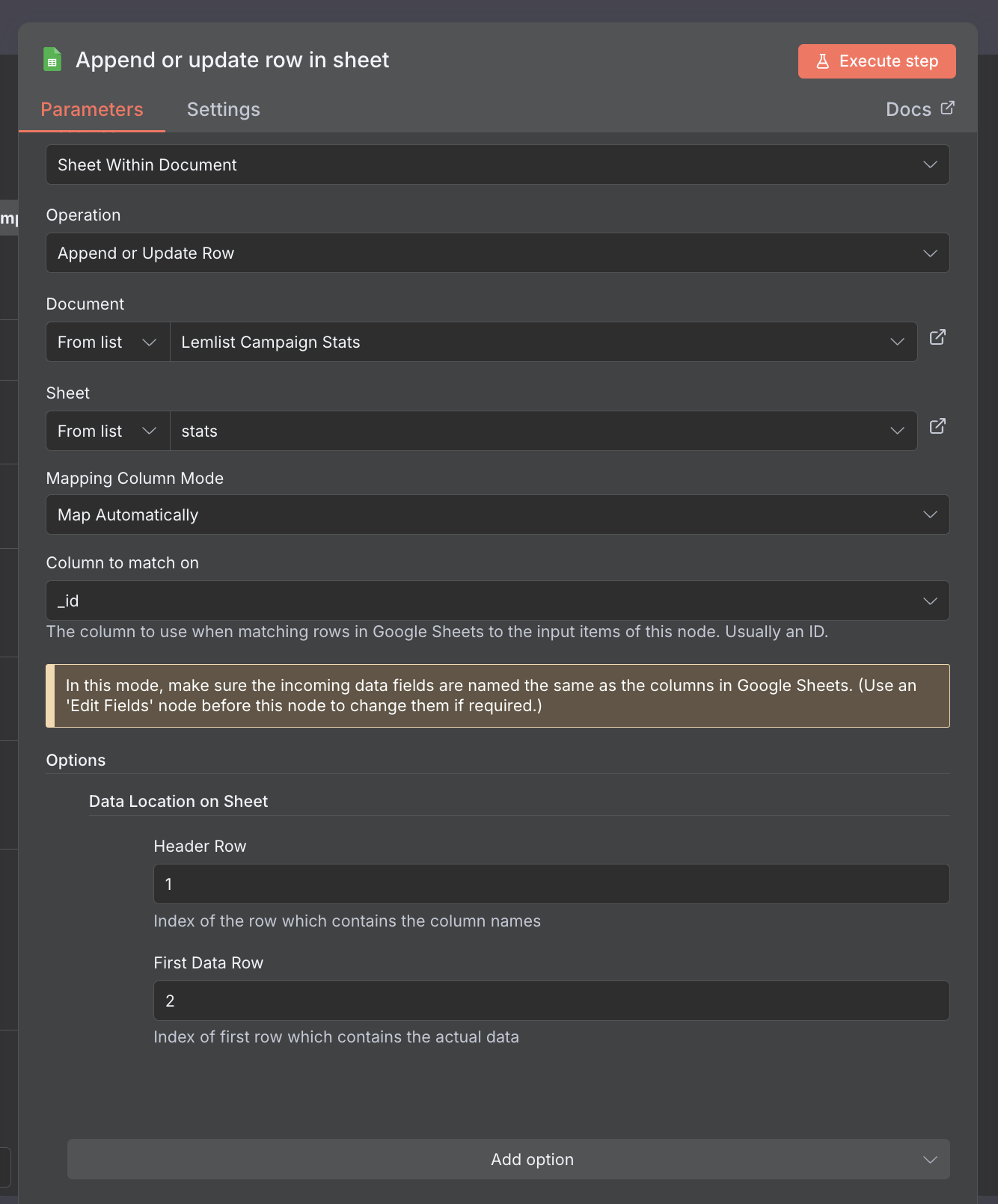
Ultimately, this is what your node configuration looks like (when you map columns automatically, which i suggest you do, thanks to the preparation of your spreadsheet at the previous step):
Don't forget to pin everything and move on.
### Drop results in the Google Sheet
1. First, create a blank Google Sheet somewhere in Google Drive and make sure n8n has access to it ([here's the doc to give n8n access to google sheets](https://docs.n8n.io/integrations/builtin/app-nodes/n8n-nodes-base.googlesheets/?utm_source=n8n_app\&utm_medium=node_settings_modal-credential_link\&utm_campaign=n8n-nodes-base.googleSheets) if not) and add headers to the sheet. You need to add them manually beforehand, like this:
2. Then, add a "Append or update Sheet" Google Sheet node to the workflow.
> “Wait, why *update*?”
> Because, i'm assuming that you only want the most up-to-date stats in your Google Sheet. If not though, you would simply append results to your Google Sheet and timestamp them.
> It's up to you, but from there, i'll assume that you only want the most recent data and hence, need to update rows in your spreadsheet (that's why i had you enter sheet headers manually beforehand by the way).
Ultimately, this is what your node configuration looks like (when you map columns automatically, which i suggest you do, thanks to the preparation of your spreadsheet at the previous step):
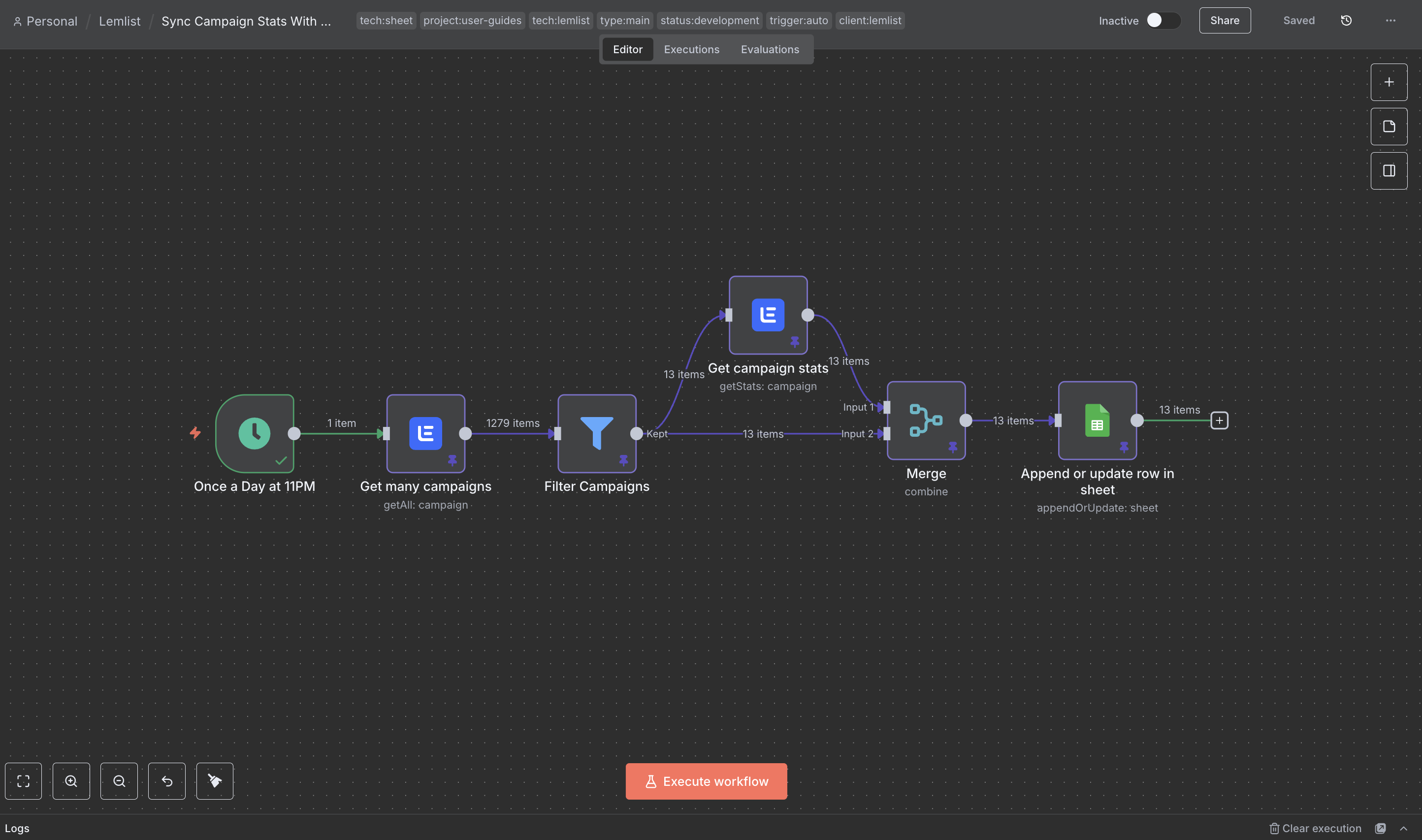
 3. Now click on "execute workflow" one last time and make sure that your spreadsheet gets updated as intended.
 4. Wait, you know what?
Run it even a second time, and make sure that your spreadsheet actually got updated, and that you didn’t append rows at the end of the sheet ;) If not, congrats: activate your workflow and you’re good to go!
## That's all folks!
Oh wait, no that’s not all 🙃 If you don’t want to start from scratch, you can get the full n8n workflow built in this guide here: [Your n8n workflows](https://www.notion.so/2b0dfb675ef480b08e94f24e5445b71e?pvs=21)
Anyway, i hope you found this guide useful and that you see how it could be tweaked a million ways to perfectly fit your needs (by filtering campaigns differently, by putting the data in different sheets, by appending rows instead of updating them, etc.).
Now, i suggest you check this other guide: **Send Slack notification upon lead positive reply in lemlist**. It's very helpful too, should you want to warn your clients/employees in Slack directly when they get positive replies.
4. Wait, you know what?
Run it even a second time, and make sure that your spreadsheet actually got updated, and that you didn’t append rows at the end of the sheet ;) If not, congrats: activate your workflow and you’re good to go!
## That's all folks!
Oh wait, no that’s not all 🙃 If you don’t want to start from scratch, you can get the full n8n workflow built in this guide here: [Your n8n workflows](https://www.notion.so/2b0dfb675ef480b08e94f24e5445b71e?pvs=21)
Anyway, i hope you found this guide useful and that you see how it could be tweaked a million ways to perfectly fit your needs (by filtering campaigns differently, by putting the data in different sheets, by appending rows instead of updating them, etc.).
Now, i suggest you check this other guide: **Send Slack notification upon lead positive reply in lemlist**. It's very helpful too, should you want to warn your clients/employees in Slack directly when they get positive replies.